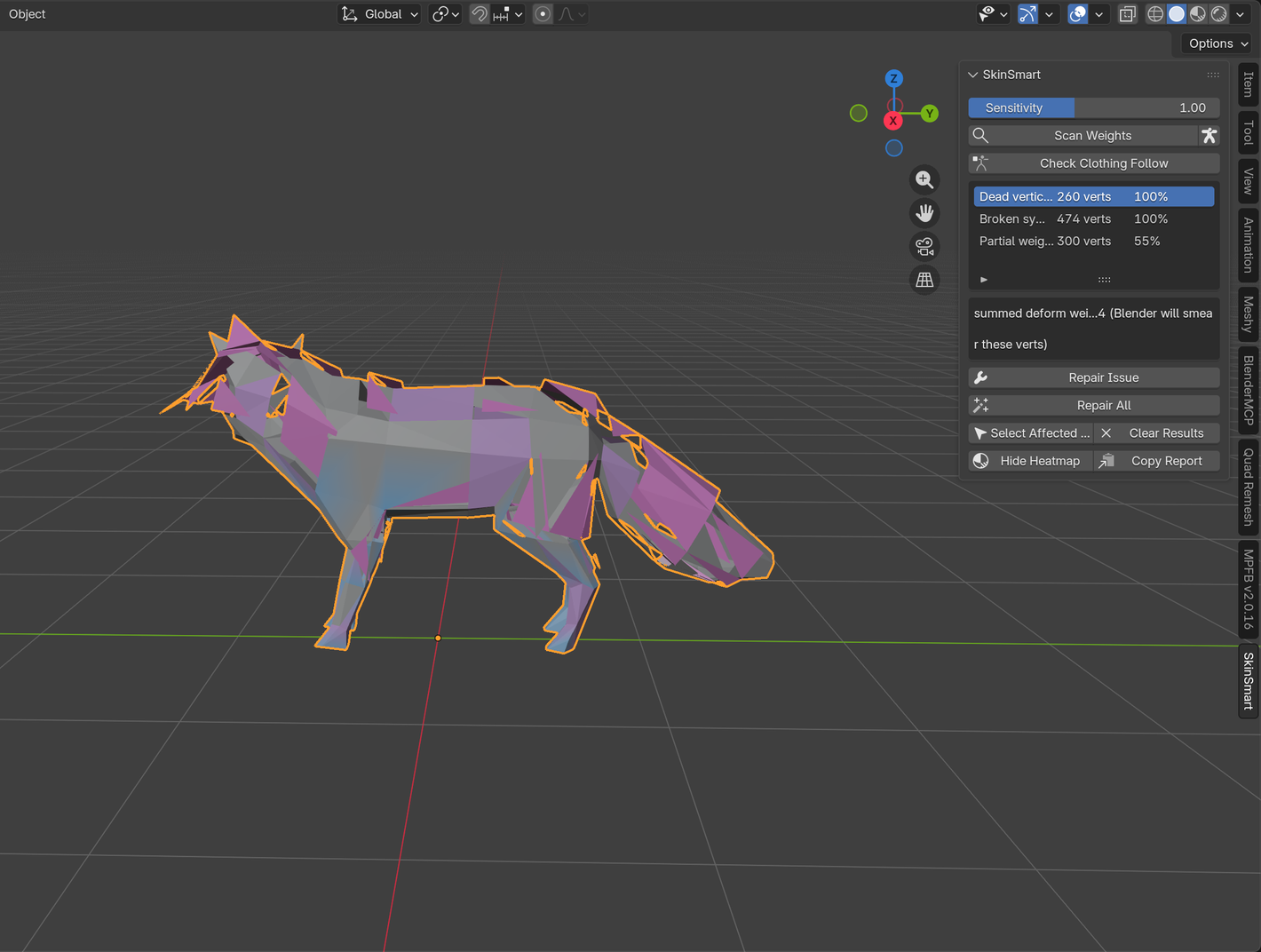
This failure often appears after importing a creature, joining mesh parts, generating a control rig, or trying Automatic Weights more than once. The vertex groups are visible and Weight Paint has color, yet only a few bones move the mesh—or one body part stays completely still.
Do not delete every group or rebind the whole creature yet. First prove whether the break is in the deformation path or in the weight values.
Check the deformation path in this order
-
Pose a deform bone, not only a control bone
Generated rigs can expose controller shapes while separate deform bones drive the mesh. In Rigify, deform bones commonly use a DEF- prefix. Confirm that the control actually drives the expected deform bone before blaming the weights.
-
Verify the Armature modifier target
Select the mesh and inspect its Armature modifier. The Object field must point to the rig you are posing, the modifier must be enabled in the viewport, and Vertex Groups must be enabled. Imported files can contain an older or duplicate armature that looks similar but is not the modifier target.
-
Match the deform bone and vertex-group names exactly
Vertex-group deformation depends on a same-named deform bone. A visible group can be unused when its name differs by a prefix, suffix, side marker, or capitalization—or when the corresponding bone has Deform turned off.
-
Read one exact vertex weight
In Edit Mode, select a vertex on the still part and open the 3D Viewport Sidebar's Vertex Weights panel. Confirm that the matching deform-bone group has a nonzero value on that vertex. Color alone can hide a zero, a tiny value, or the fact that another group is active.
On a copy, assign one test vertex to the verified deform-bone group at weight 1.0, then pose that deform bone. If the vertex still does not move, the problem is not smoothing or weight quality; the deformation path is broken.
Why Automatic Weights can look successful
Parenting with Automatic Weights can create vertex groups even when the final setup is not the one you intend to pose. It does not repair a modifier aimed at a different armature, make control bones deform, reconnect a joined part with no useful weights, or resolve every imported multi-object setup.
The reverse is also true: a mesh does not need to be parented directly to the armature for an Armature modifier to deform it. Parenting and deformation are related workflow conveniences, but the active modifier, the deform bones, and the matching groups are the parts that determine the result.
Repair only the failed link
- Wrong modifier target: point the existing Armature modifier at the intended rig and retest before rebinding.
- Wrong bone type: pose the actual deform bone or repair the control-to-deform relationship without assigning mesh weights to the controller.
- Name mismatch: make the intended vertex group match the deform bone exactly; preserve unrelated groups.
- Missing weights on one joined part: assign or transfer only that part's required weights, then normalize and test the seam.
- Several rigs or modifiers: disable them one at a time on a copy so you can identify which stack entry produces the motion.
After the part moves, test neighboring joints through their useful range. A technically connected head, paw, wing, or tail can still reveal a hard seam or unwanted cross-influence that needs a smaller weight repair.
Use the analyzer after the path works
The free SkinSmart beta can inspect organic, armature-driven meshes for suspicious group relationships and select affected vertices. It does not infer which imported rig you intended to use, rebuild controller logic, or guarantee that an arbitrary rig can be repaired.
Once a verified deform bone moves the mesh, use the analyzer to narrow wrong-bone influence or unusually blended regions without changing the file.
Download the free analyzerBlender references
- Armature Modifier: verify the target object and vertex-group deformation options.
- Bone Deform properties: confirm that the intended bone can deform geometry.
- Vertex Weights: inspect the exact groups and numeric weights on one selected vertex.
- Armature parenting: compare Empty Groups, Envelope Weights, and Automatic Weights workflows.