A Blender Artists user described a rig that suddenly behaved differently while learning Weight Paint. The useful clue was not a new bone or modifier: Auto Normalize had been off, so painted values no longer described their real share of the vertex's combined deform influences. Turning it on improved the edit, but the safe fix is to understand what Blender will rebalance before the next stroke.
What Auto Normalize actually changes
Blender evaluates deform weights relative to the other deform groups on the same vertex. A red value of 1.0 in the active group does not mean that bone owns the vertex if other deform bones also have nonzero values.
- Auto Normalize on: while painting, Blender redistributes weight among the deform groups that are allowed to change so their combined influence remains normalized.
- Auto Normalize off: a stroke changes the active group's stored value without cleaning up competing influences. The viewport color can therefore overstate that bone's effective share.
- Locked groups: their stored values are protected. The remaining unlocked deform groups must absorb the rebalance, and there may be little or no weight left to distribute if the locked total is already high.
It can make the weight totals coherent, but it cannot decide which bone should own the failed vertex. Preserve the pose that exposes the problem and identify the wrong relationship first.
Inspect one vertex before changing the brush
-
Keep the failed pose visible
On a saved copy, pose the joint at the frame where the collapse, pull, or gap is obvious. Enable the Armature modifier's Edit Mode display so the bad relationship remains visible while you inspect the mesh.
-
Read every numeric influence
In Edit Mode, select one visibly wrong vertex and open the 3D Viewport Sidebar's Vertex Weights panel. Record the active bone, its expected neighbor, and any distant or opposite-side deform group with a nonzero value.
-
Compare a nearby vertex that bends correctly
The correct vertex is a local reference for which groups should share the transition. Do not assume every unlocked group near the joint is intentional just because Automatic Weights created it.
Contain the edit to the failed relationship
-
Select the affected vertices
Use vertex or face selection masking so the brush cannot touch the already-good region. Start with the smallest selection that reproduces the failed pose.
-
Protect known-good deform groups
Lock groups whose weights must remain unchanged. Leave unlocked only the bone relationships that should exchange influence at this joint. If the protected groups already consume most of the total weight, expect only a small editable remainder.
-
Enable Auto Normalize and add weight deliberately
Use a low-strength Draw or Add stroke on the bone that should gain influence, then switch to its intended neighbor if weight needs to move back. Avoid broad subtraction: the released weight can be redistributed to another unlocked group you did not intend.
-
Verify the numbers and the motion
Reopen Vertex Weights on the same vertex, confirm the unrelated group did not change, and scrub the full joint range. Check adjacent vertices before expanding the selection.
Use Normalize All only after the ownership is correct
Normalize scales only the active group's values. Normalize All works across the deform groups and respects locked groups; its Lock Active option can preserve the active group while the others rebalance. Those operations fix totals, not bone choice.
If you painted with Auto Normalize off, first remove proven stray influences and establish the intended neighboring groups. Then run Normalize All on the selected failed region, with the lock state reviewed, and test the same pose again. A whole-mesh normalize can alter regions that were never part of the failure.
Use the analyzer to find suspicious relationships
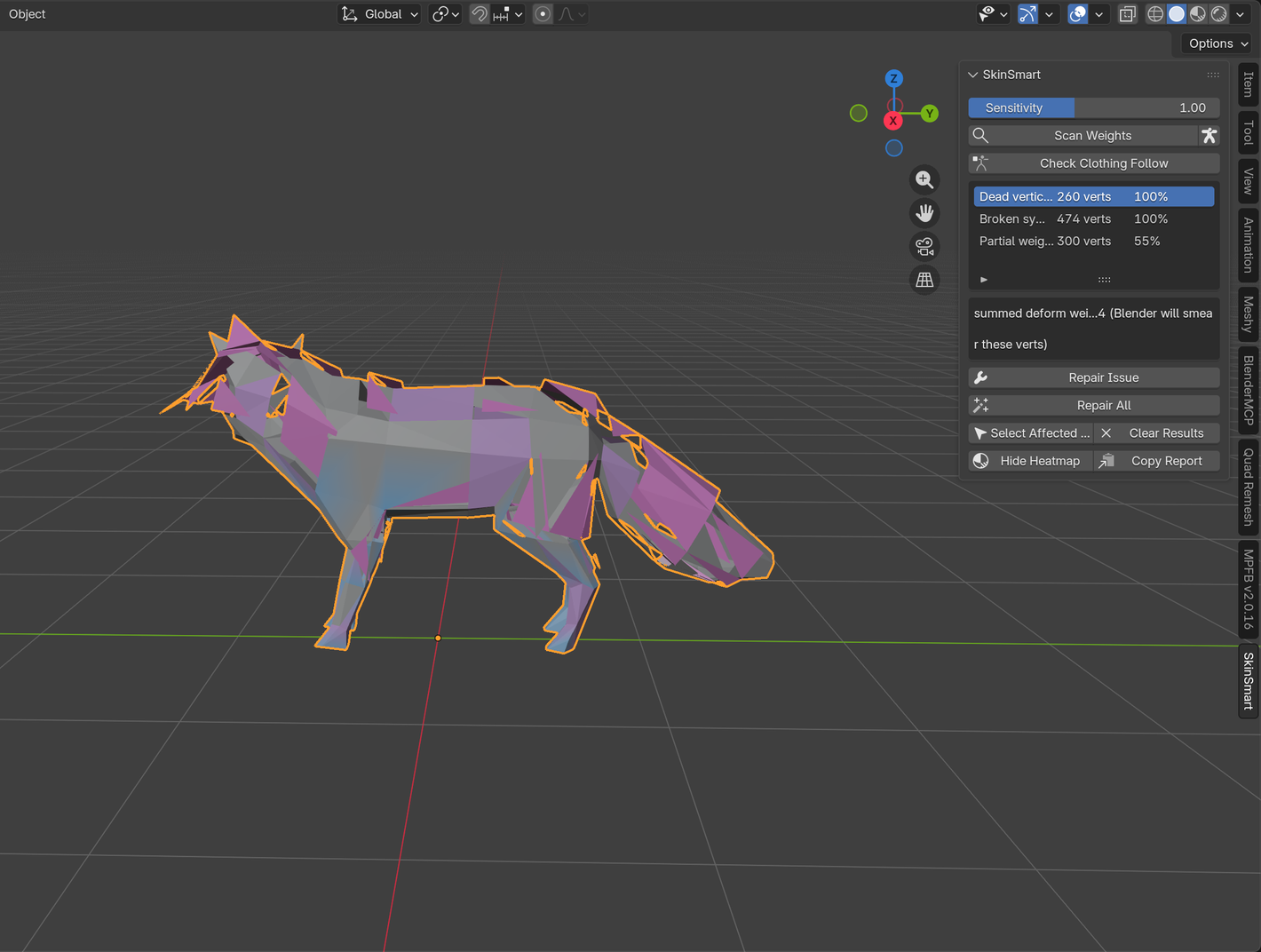
The free SkinSmart beta can flag suspicious weight relationships and select affected vertices for review. It does not paint, normalize, or change the rig. It also cannot guarantee that an arbitrary production file can be repaired.
Download the free analyzerReferences
- Blender Artists: rig suddenly started working differently, the public Auto Normalize symptom that prompted this guide.
- Blender Manual: Weight Paint introduction, including the normalized workflow, locks, Auto Normalize, and Multi-Paint.
- Blender Manual: Weight Paint editing, including Normalize, Normalize All, and locked groups.
- Blender Manual: Vertex Weights, for inspecting and editing the exact group values on a selected vertex.